Markdown
Locations of key files/directories
- Basic config options: _config.yml
- Top navigation bar config: _data/navigation.yml
- Single pages: _pages/
- Collections of pages are .md or .html files in:
- _publications/
- _portfolio/
- _posts/
- _teaching/
- _talks/
- Footer: _includes/footer.html
- Static files (like PDFs): /files/
- Profile image (can set in _config.yml): images/profile.png
Tips and hints
- Name a file “.md” to have it render in markdown, name it “.html” to render in HTML.
- Go to the commit list (on your repo) to find the last version Github built with Jekyll.
- Green check: successful build
- Orange circle: building
- Red X: error
- No icon: not built
Resources
Markdown guide
Header three
Header four
Header five
Header six
Blockquotes
Single line blockquote:
Quotes are cool.
Tables
Table 1
| Entry | Item | |
|---|---|---|
| John Doe | 2016 | Description of the item in the list |
| Jane Doe | 2019 | Description of the item in the list |
| Doe Doe | 2022 | Description of the item in the list |
Table 2
| Header1 | Header2 | Header3 |
|---|---|---|
| cell1 | cell2 | cell3 |
| cell4 | cell5 | cell6 |
| cell1 | cell2 | cell3 |
| cell4 | cell5 | cell6 |
| Foot1 | Foot2 | Foot3 |
Definition Lists
- Definition List Title
- Definition list division.
- Startup
- A startup company or startup is a company or temporary organization designed to search for a repeatable and scalable business model.
- #dowork
- Coined by Rob Dyrdek and his personal body guard Christopher “Big Black” Boykins, “Do Work” works as a self motivator, to motivating your friends.
- Do It Live
- I’ll let Bill O’Reilly explain this one.
Unordered Lists (Nested)
- List item one
- List item one
- List item one
- List item two
- List item three
- List item four
- List item two
- List item three
- List item four
- List item one
- List item two
- List item three
- List item four
Ordered List (Nested)
- List item one
- List item one
- List item one
- List item two
- List item three
- List item four
- List item two
- List item three
- List item four
- List item one
- List item two
- List item three
- List item four
Buttons
Make any link standout more when applying the .btn class.
Notices
Watch out! You can also add notices by appending {: .notice} to a paragraph.
HTML Tags
Address Tag
1 Infinite LoopCupertino, CA 95014
United States
Anchor Tag (aka. Link)
This is an example of a link.
Abbreviation Tag
The abbreviation CSS stands for “Cascading Style Sheets”.
Cite Tag
“Code is poetry.” —Automattic
Code Tag
You will learn later on in these tests that word-wrap: break-word; will be your best friend.
Strike Tag
This tag will let you strikeout text.
Emphasize Tag
The emphasize tag should italicize text.
Insert Tag
This tag should denote inserted text.
Keyboard Tag
This scarcely known tag emulates keyboard text, which is usually styled like the <code> tag.
Preformatted Tag
This tag styles large blocks of code.
.post-title {
  margin: 0 0 5px;
  font-weight: bold;
  font-size: 38px;
  line-height: 1.2;
  and here's a line of some really, really, really, really long text, just to see how the PRE tag handles it and to find out how it overflows;
}
Quote Tag
Developers, developers, developers…
–Steve Ballmer
Strong Tag
This tag shows bold text.
Subscript Tag
Getting our science styling on with H2O, which should push the “2” down.
Superscript Tag
Still sticking with science and Isaac Newton’s E = MC2, which should lift the 2 up.
Variable Tag
This allows you to denote variables.
Use of the website
Create content & metadata
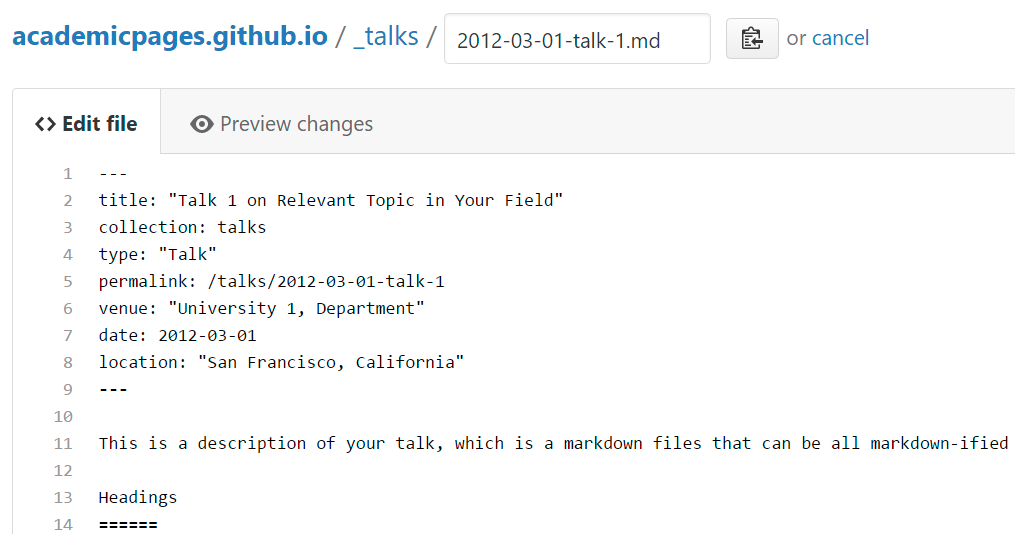
For site content, there is one markdown file for each type of content, which are stored in directories like _publications, _talks, _posts, _teaching, or _pages. For example, each talk is a markdown file in the _talks directory. At the top of each markdown file is structured data in YAML about the talk, which the theme will parse to do lots of cool stuff. The same structured data about a talk is used to generate the list of talks on the Talks page, each individual page for specific talks, the talks section for the CV page, and the map of places you’ve given a talk (if you run this python file or Jupyter notebook, which creates the HTML for the map based on the contents of the _talks directory).
Markdown generator
I have also created a set of Jupyter notebooks that converts a CSV containing structured data about talks or presentations into individual markdown files that will be properly formatted for the academicpages template. The sample CSVs in that directory are the ones I used to create my own personal website at stuartgeiger.com. My usual workflow is that I keep a spreadsheet of my publications and talks, then run the code in these notebooks to generate the markdown files, then commit and push them to the GitHub repository.
How to edit your site’s GitHub repository
Many people use a git client to create files on their local computer and then push them to GitHub’s servers. If you are not familiar with git, you can directly edit these configuration and markdown files directly in the github.com interface. Navigate to a file (like this one and click the pencil icon in the top right of the content preview (to the right of the “Raw | Blame | History” buttons). You can delete a file by clicking the trashcan icon to the right of the pencil icon. You can also create new files or upload files by navigating to a directory and clicking the “Create new file” or “Upload files” buttons.
Example: editing a markdown file for a talk